Walkthrough: Inviting a Co-Admin
What actually happens, click by click, when you bring a second administrator into your organization — from the invite to their first sign-in.
1. Open Admins
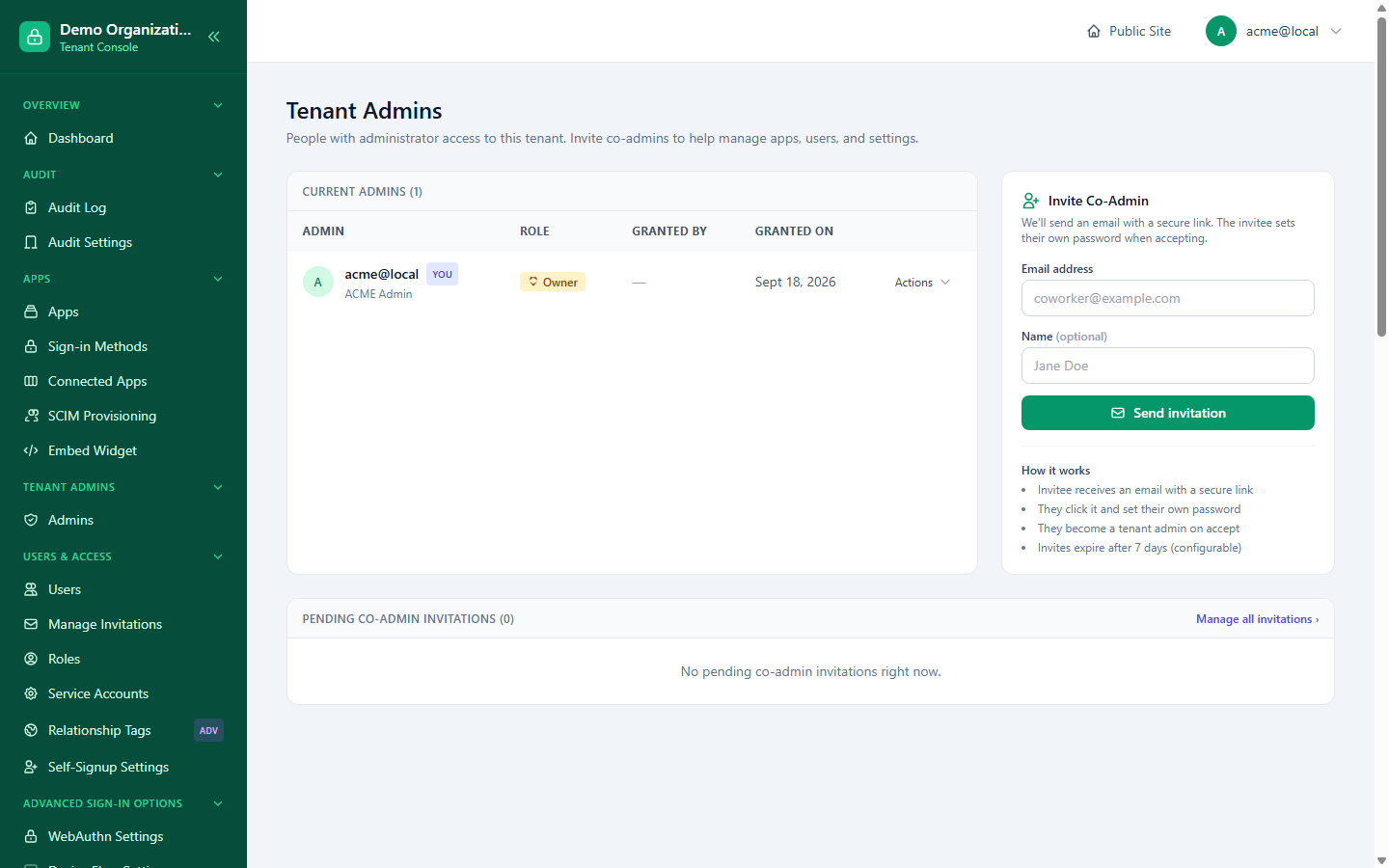
Console → Admins lists everyone with administrator access to your organization. A brand-new organization shows exactly one row: you, marked Owner, with no "granted by" (you're the organization's first admin, nobody granted it to you) and today's date under "granted on."
2. Fill in the invite form and send it
On the right, Invite Co-Admin asks for two things: an email address (required) and a name (optional — it's just used to personalize the invitation email; the invitee can change it later). Click Send invitation.
3. What happens the instant you click Send
Nothing is created in your organization yet — no user row, no admin grant. What actually happens:
- A secure, single-use invitation link is generated, tied to that email address and this organization.
- An email goes out with that link, explained plainly: they'll set their own password when they accept.
- The invitation appears under Pending Co-Admin Invitations on this same page, and the count next to it goes from 0 to 1.
- A 7-day expiry clock starts (configurable) — if they don't accept in time, the link stops working and you'd resend or send a fresh one.
At this point, if you check Console → Audit Log, an invitation.sent-type entry (or equivalent) is already there — the action was recorded the moment you clicked Send, not when they accept.
4. What the invitee sees
They open the email, click the link, and land on an accept-invite page asking for exactly one thing: a password. There's no separate account-creation step and no temporary password to change later — the password they set here is their real one from the first sign-in.
5. What happens the instant they submit that password
- A real admin account is created for them in your organization, with the co-admin role — not Owner, which stays with whoever created the organization.
- Their invitation flips from pending to accepted — it disappears from the pending list and they now appear as a second row on the main Admins list, with "granted by" showing your name and "granted on" showing today's date.
- They're signed in immediately and land in your organization's Console.
6. Managing the invitation before they accept
If you sent it to the wrong address, or they just haven't gotten to it and you're impatient:
- Resend — for a still-pending or already-expired invite, this regenerates the link and extends the expiry, sending a fresh email. If email delivery fails for any reason, the fresh link is still shown to you directly so you can share it manually rather than being stuck.
- Revoke — invalidates the pending link immediately; if they click it after this, it simply doesn't work anymore. An already-accepted invitation can't be revoked this way — at that point they're a real admin, and removing their access is a different action (from their row on the main Admins list) with its own safety check (you can't remove the last admin, or the Owner).
Where to go from here
- Organization Settings — the full reference for admin management, including revoke safety rules.
- Investigating an Admin's Actions — once you have more than one admin, this is how you review what they've done.
- Onboarding & Membership — the equivalent invite flow for regular end users rather than co-admins.