Organization Settings
The general configuration surfaces for your organization itself — branding, domains, notifications, admin management, and the handful of settings that are platform-governed rather than tenant self-service.
Branding
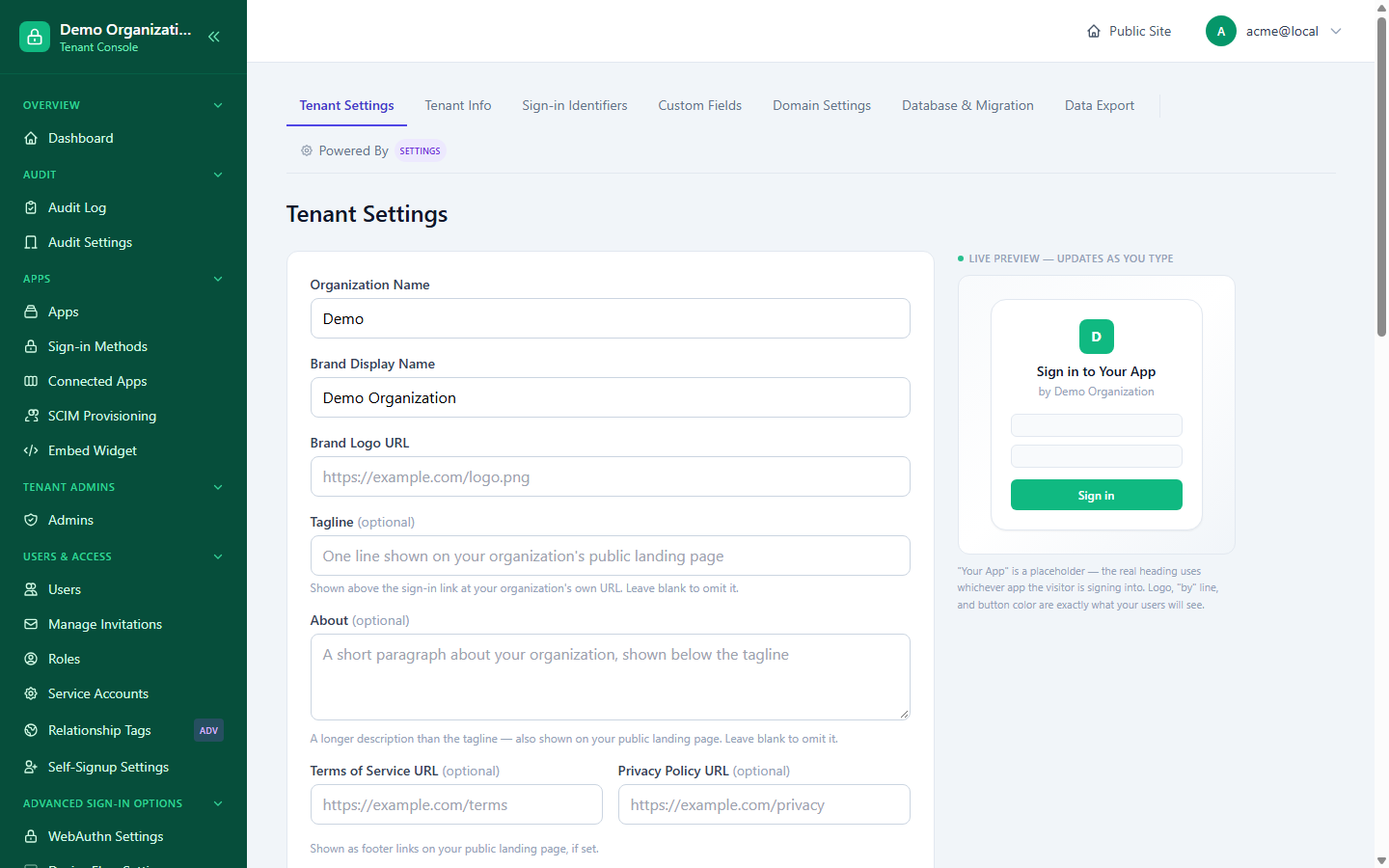
Console → Tenant Settings — your organization's display name, brand name, logo URL, brand color, tagline, an "about" description, and links to your own Terms and Privacy pages. This is tenant-owned data; changes take effect on your sign-in pages immediately, and the page includes a live preview panel of the actual sign-in card your users will see, updating as you type.
Tenant Info
Console → Tenant Info is where you fill in values for organization-level custom fields (a support email, a mailing address, anything your organization has defined) — the field definitions themselves are managed separately, on Identifiers & Custom Fields. Fields render grouped and type-aware (text, email, URL, textarea, select, etc.) based on how each was defined.
Domain settings
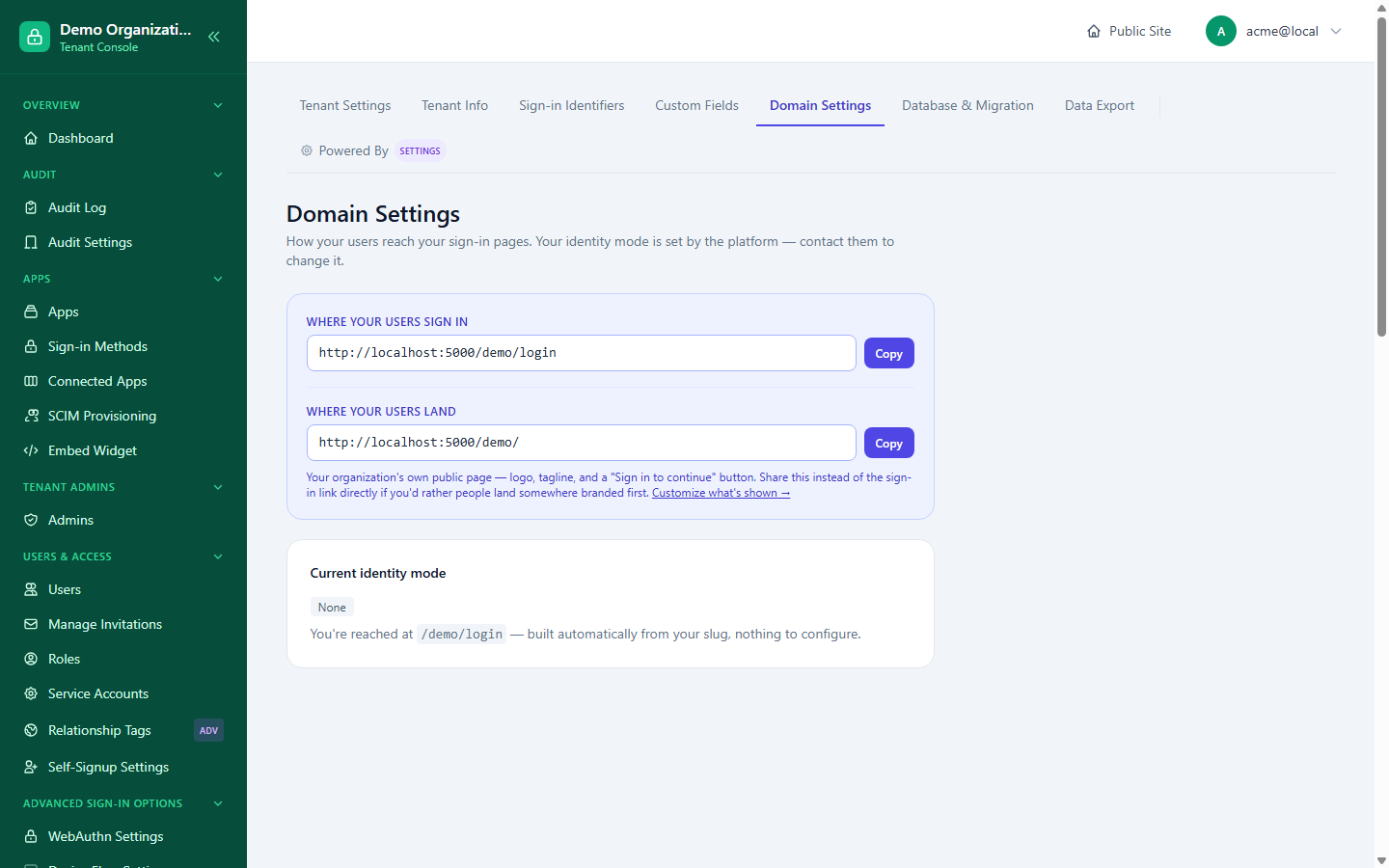
Console → Domain Settings always shows your two real sign-in URLs — where your users sign in (your slug-based path, e.g. /your-org/login) and where they land on your organization's own branded public page — with one-click copy for sharing either. The identity mode shown here is platform-set (read-only to a tenant admin) and controls what else this page offers:
- None (the default) — path-based routing only, as above; nothing further to configure here.
- Subdomain or custom domain — once the platform owner enables one of these modes for your organization, this page additionally offers:
- Enter your custom domain.
- Add the DNS TXT record shown, then verify ownership.
- Once verified, upload your own TLS certificate (certificate + private key, PEM format) — manual upload only; there's no automatic certificate issuance yet.
Notifications
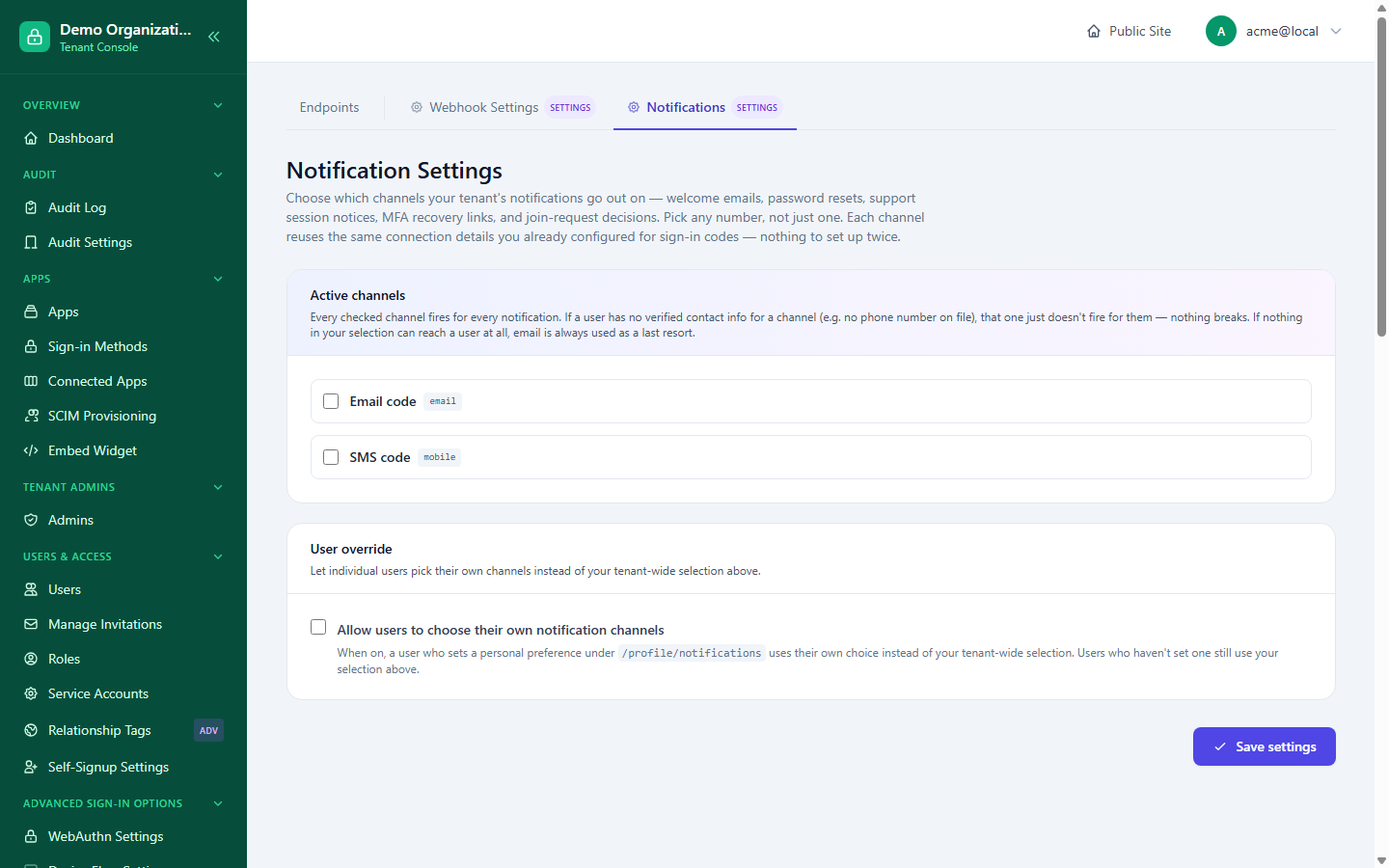
Console → Notification Settings chooses which connectors (email, SMS, etc.) your organization uses to deliver notifications — welcome emails, password resets, MFA recovery links, join-request decisions, and more — a set, not a single mode, and every checked channel fires for every notification. If a user has no verified contact info for a channel, that channel just doesn't fire for them rather than breaking anything; email is always used as the last-resort fallback if nothing else can reach them. A separate toggle lets individual users choose their own personal channel preference (at /profile/notifications) instead of your tenant-wide selection; users who haven't set one still use your selection above. A matching single-toggle mirror of the same setting also appears on each relevant connector's own configuration page, as a second, more discoverable entry point onto the same underlying value.
"Powered by LoginLink" attribution
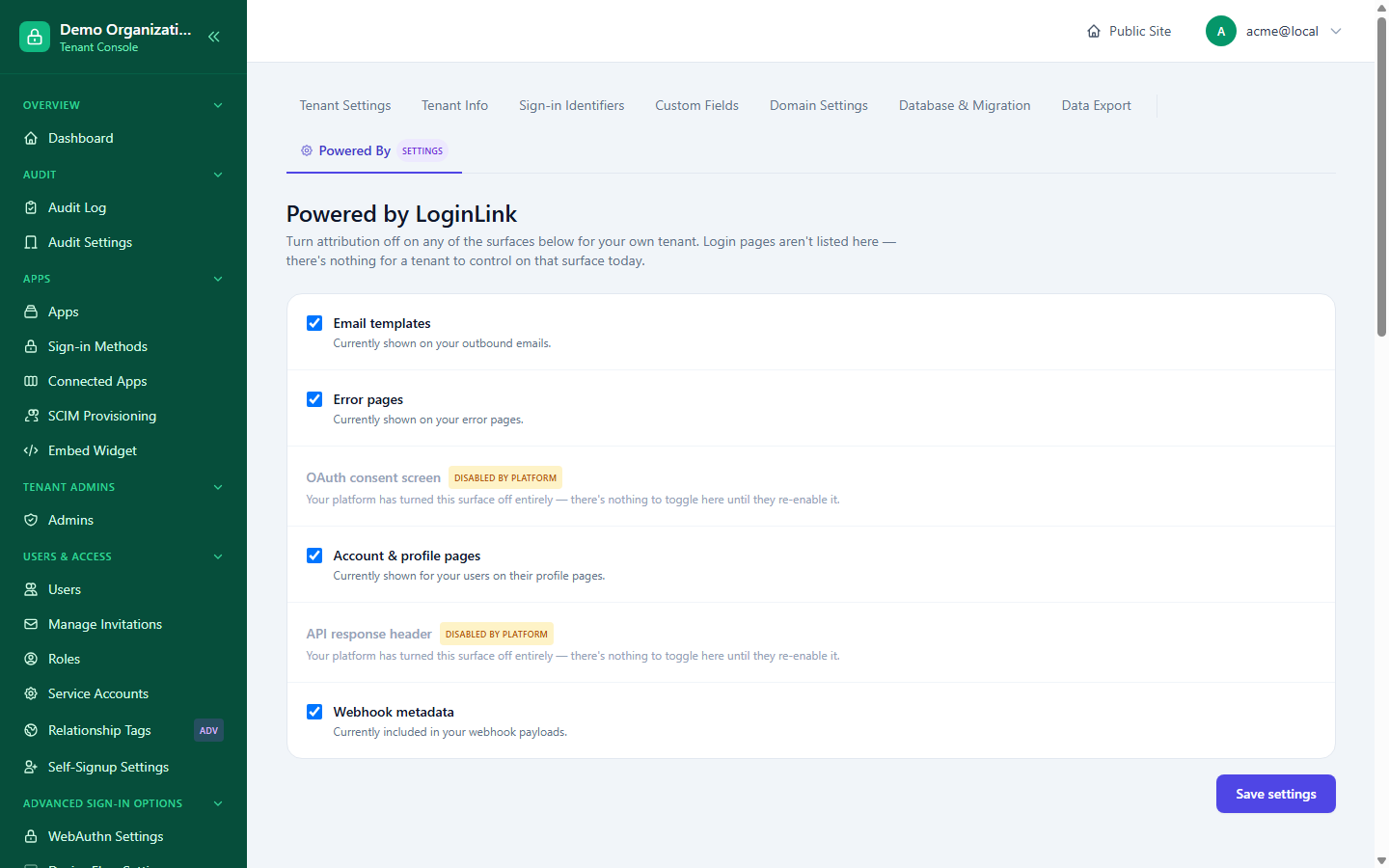
Console → Powered By Settings — an independent toggle per narrowable surface: email templates, error pages, the OAuth consent screen, account & profile pages, the API response header, and webhook metadata. The sign-in page itself is deliberately not listed — attribution there is platform-controlled, not a tenant preference. A surface the platform owner has turned off entirely for the instance shows as disabled here too, with nothing left for a tenant admin to toggle until the platform re-enables it.
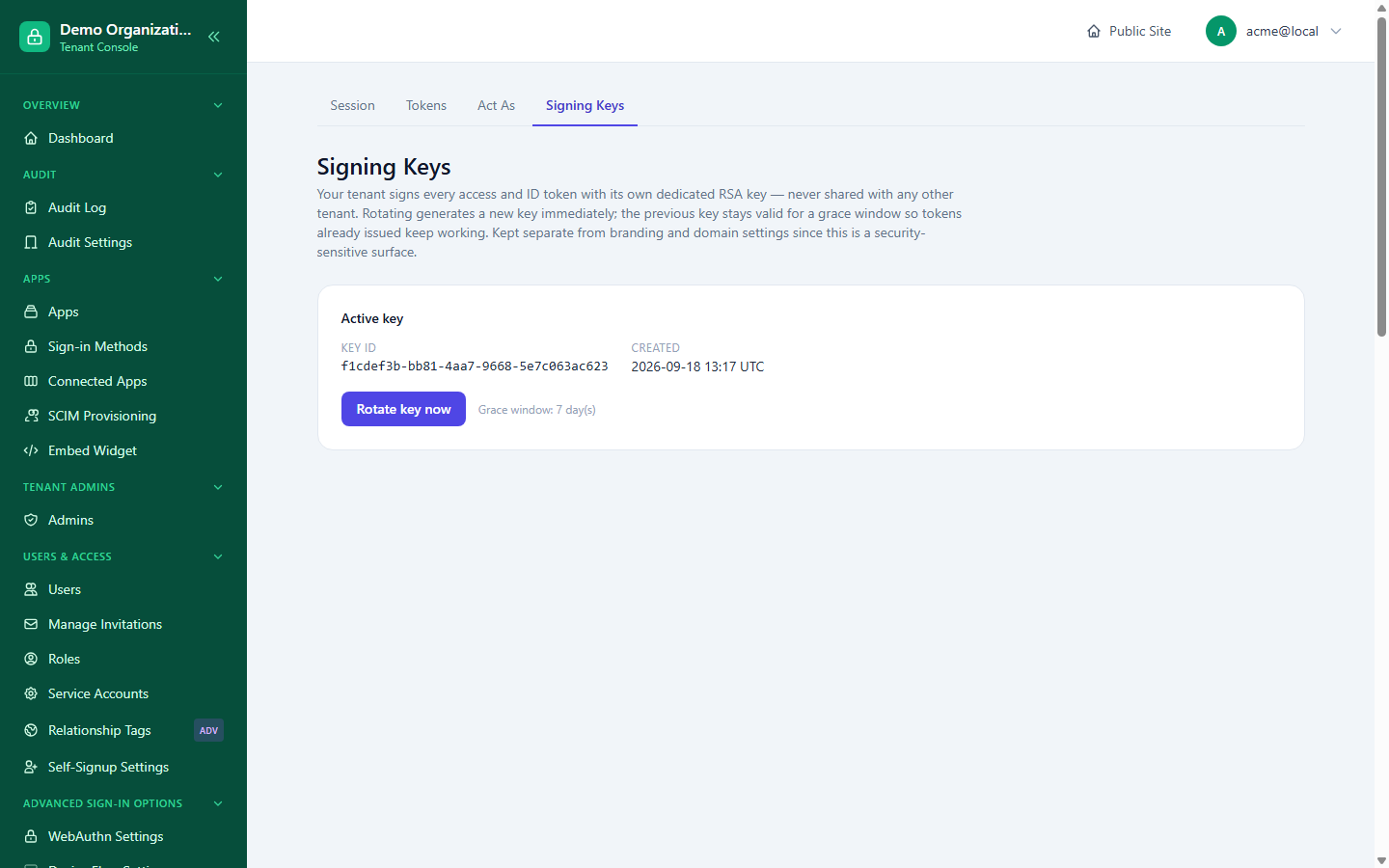
Signing keys
Console → Signing Keys — your organization signs every access and ID token with its own dedicated RSA key, never shared with any other organization. Rotating generates a new key immediately; the previous key stays valid for a grace window (7 days by default) so tokens already issued keep working rather than failing all at once. Kept on its own dedicated page, separate from branding and domain settings, because of its security sensitivity.
Admins (co-admin management)
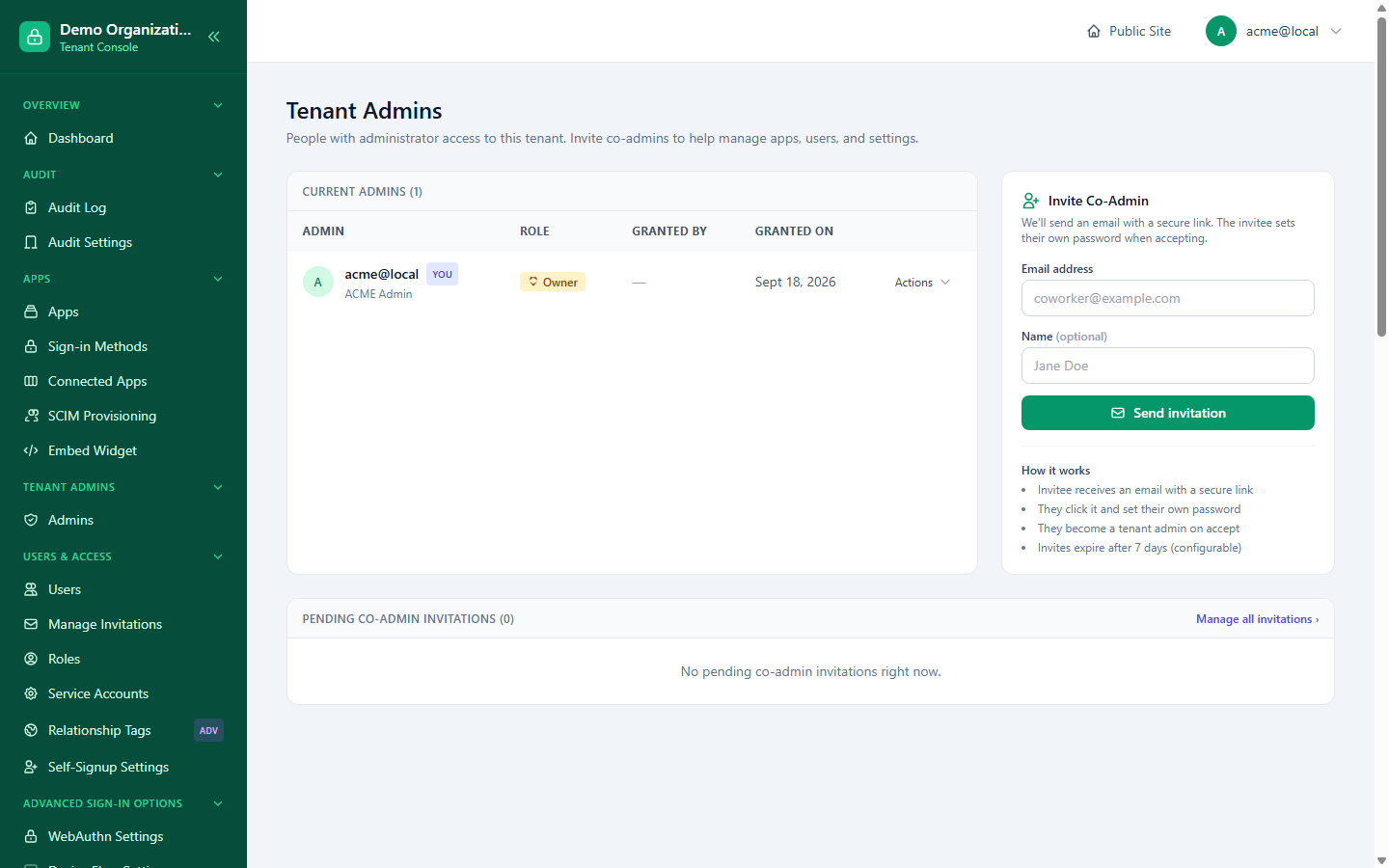
Console → Admins manages who else has admin access to your organization:
- Invite a co-admin — sends an email with a secure link; the invitee sets their own password when accepting. Invitations expire after 7 days by default (configurable).
- Revoke — built-in safety prevents revoking the organization's owner or the last remaining admin, so your organization can never end up with zero admins by accident.
- Pending, not-yet-accepted co-admin invitations can be revoked separately from an already-accepted admin's access.
Service accounts (standalone M2M identities)
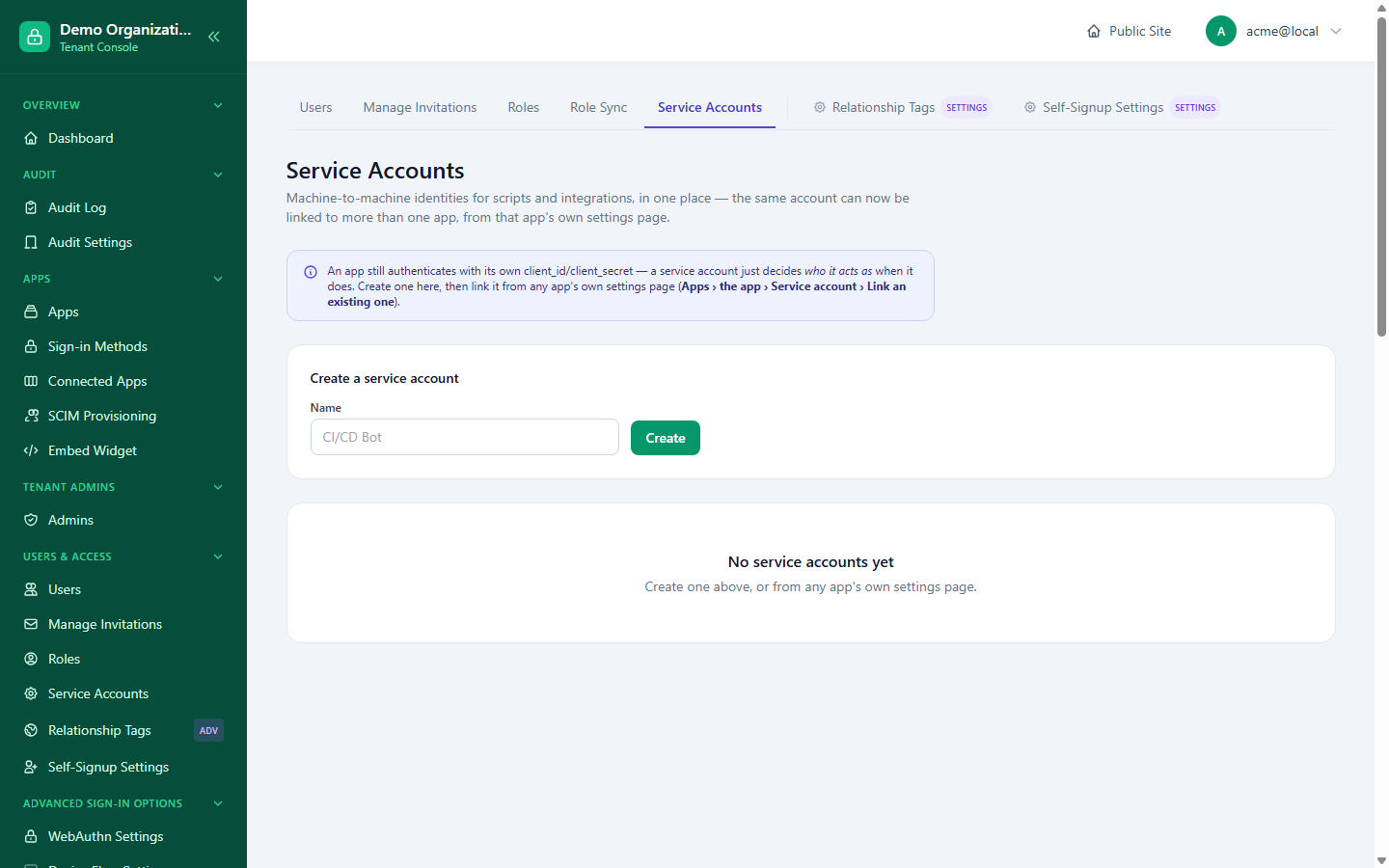
Console → Service Accounts is the tenant-wide view of every machine-to-machine identity in your organization, rather than only being reachable from inside whichever app's edit page happens to reference it. From here you can create a service account standalone (not tied to an app yet) and later link it to one or more apps from each app's own edit page — the same shared-identity model described in Apps & Connectors. You can also suspend and restore a service account independently of removing it entirely.
Bring-your-own database
Console → Database Settings — choosing and configuring your organization's own external database (MySQL or PostgreSQL) instead of the default embedded SQLite, or migrating between them. This is deliberately a separate, tenant-wide page from the per-app connector configuration system: it has no platform Floor/Override concept (the platform never imposes a ceiling on a tenant's own external database choice), and it saves through a different credentials store than per-app settings do. See BYO-DB / Data Residency for the concept and Where Your Data Lives for how this fits the platform's overall storage model.
Two settings that are platform-governed, not tenant self-service
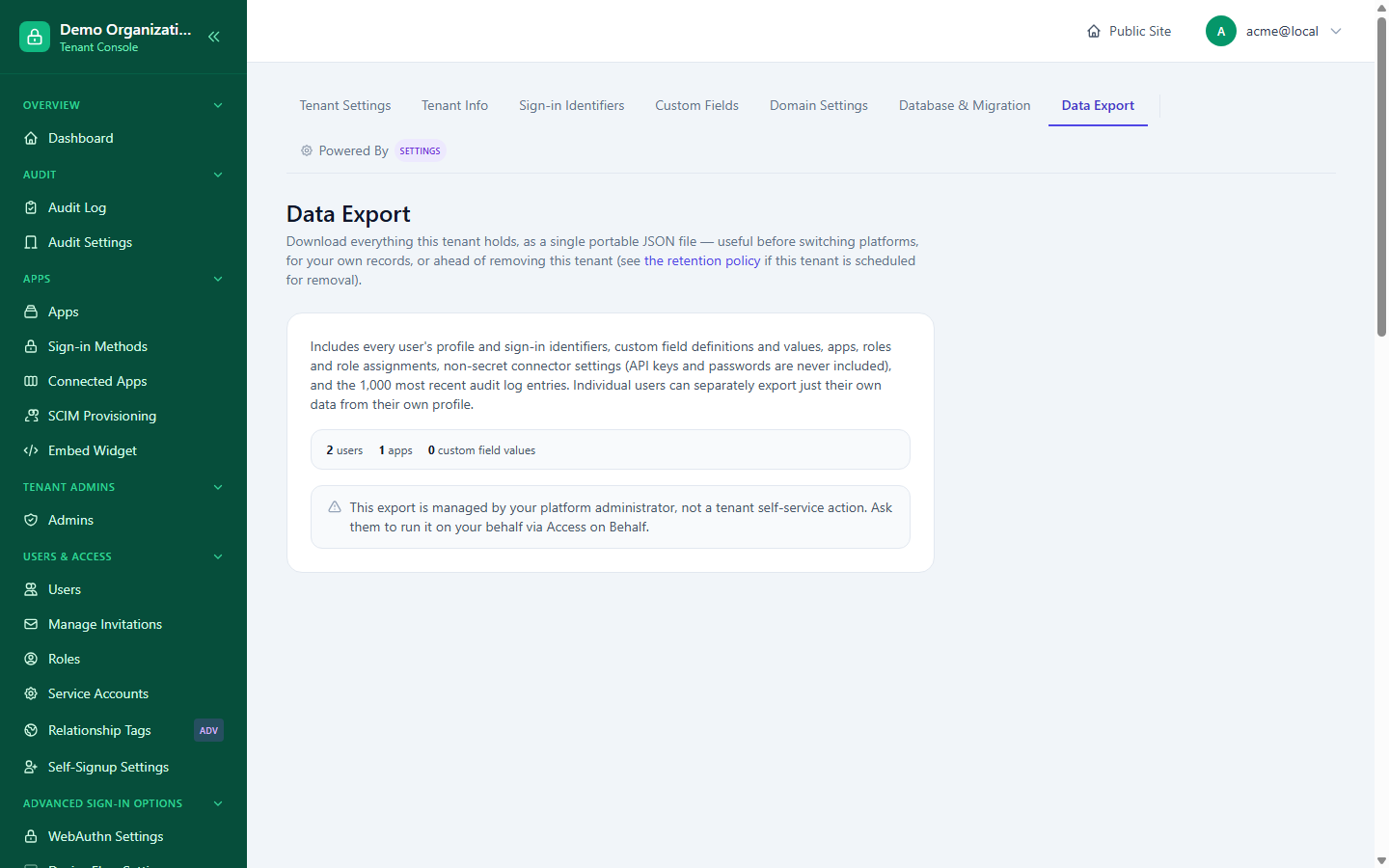
Two pages exist in Console but deliberately aren't tenant self-service — both require an active Access on Behalf session (a platform admin acting on your organization's behalf, the platform-side counterpart to the Act As feature tenant admins use on their own end users) to actually change or trigger, and show a genuine tenant-admin session a read-only explanation instead of a working control:
- Console → Migration Settings — lengthening (never shortening) your organization's own BYO-DB migration rollback grace period past the platform's minimum. Treated as a platform-level policy decision made per-tenant, not an always-on tenant toggle.
- Console → Data Export — a whole-tenant data export (every user's profile and identifiers, custom field definitions and values, apps, roles and role assignments, non-secret connector settings, and the 1,000 most recent audit log entries — API keys and passwords are never included). Reconsidered from an earlier always-available design specifically because an unbounded, whole-tenant export has real scale cost and is more of a platform-governed action than a self-service button. An individual end user can still export just their own data from their own profile at any time, independent of this restriction. Both restrictions are enforced at the save/trigger handler itself, not just hidden in the page, so neither can be bypassed by posting directly.
Related reading
- BYO-DB / Data Residency
- Apps & Connectors — per-app service account linking
- Identifiers & Custom Fields — where tenant-entity custom fields are defined