Managing Users
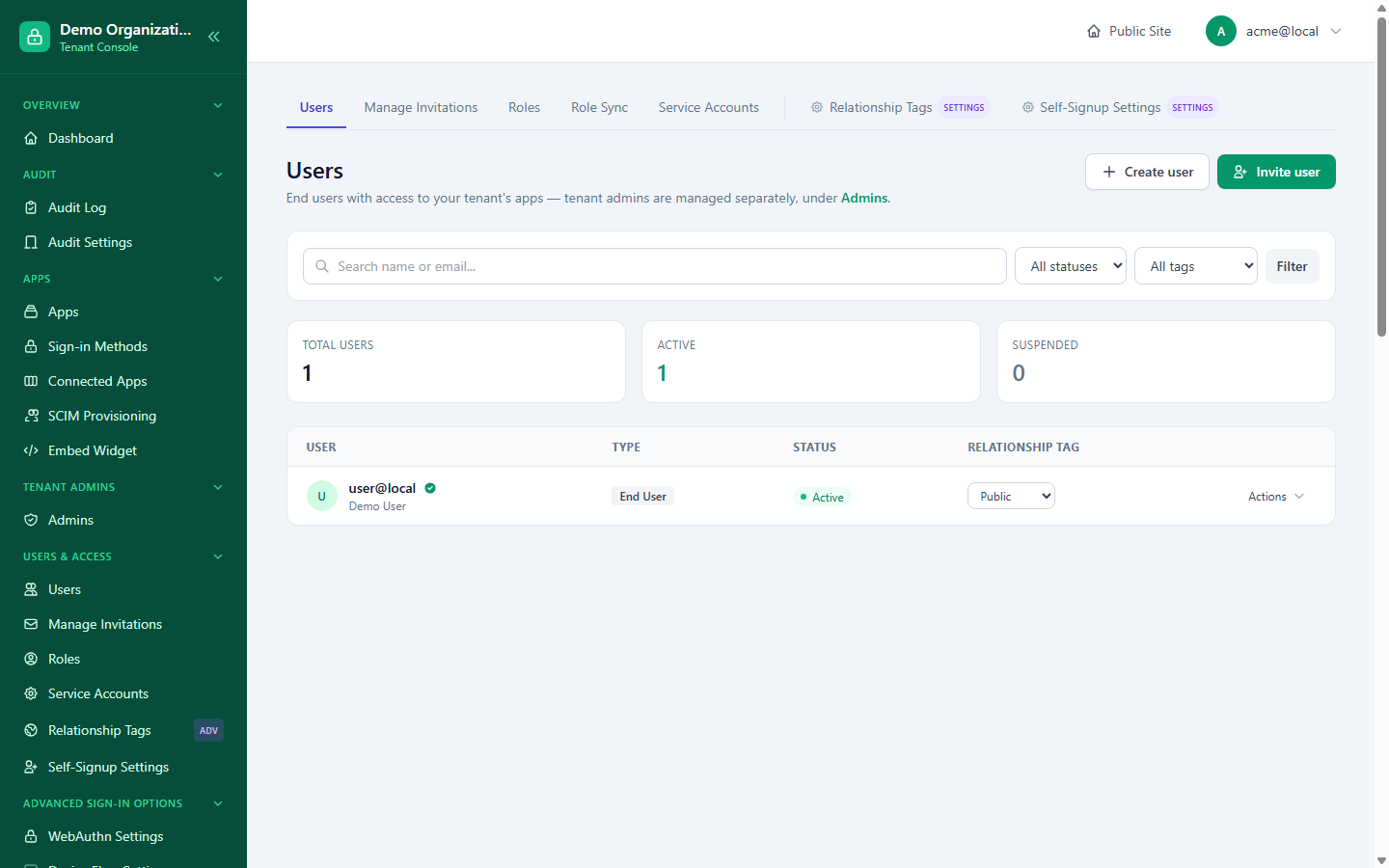
Console → Users lists everyone in your organization. Search and paging apply once you have more than a page of results, so the list stays fast at any size.
Finding someone
- Search matches name and identifier (email, mobile, username, etc.).
- Filter by status and, if you use them, tags.
- Results are paged 24 at a time; the same search and filters carry across pages and across any action you take from the list.
The same search-and-page pattern is used on Apps, Roles, and Tenant Admins — each lists 24 at a time with a search box.
The User Detail page
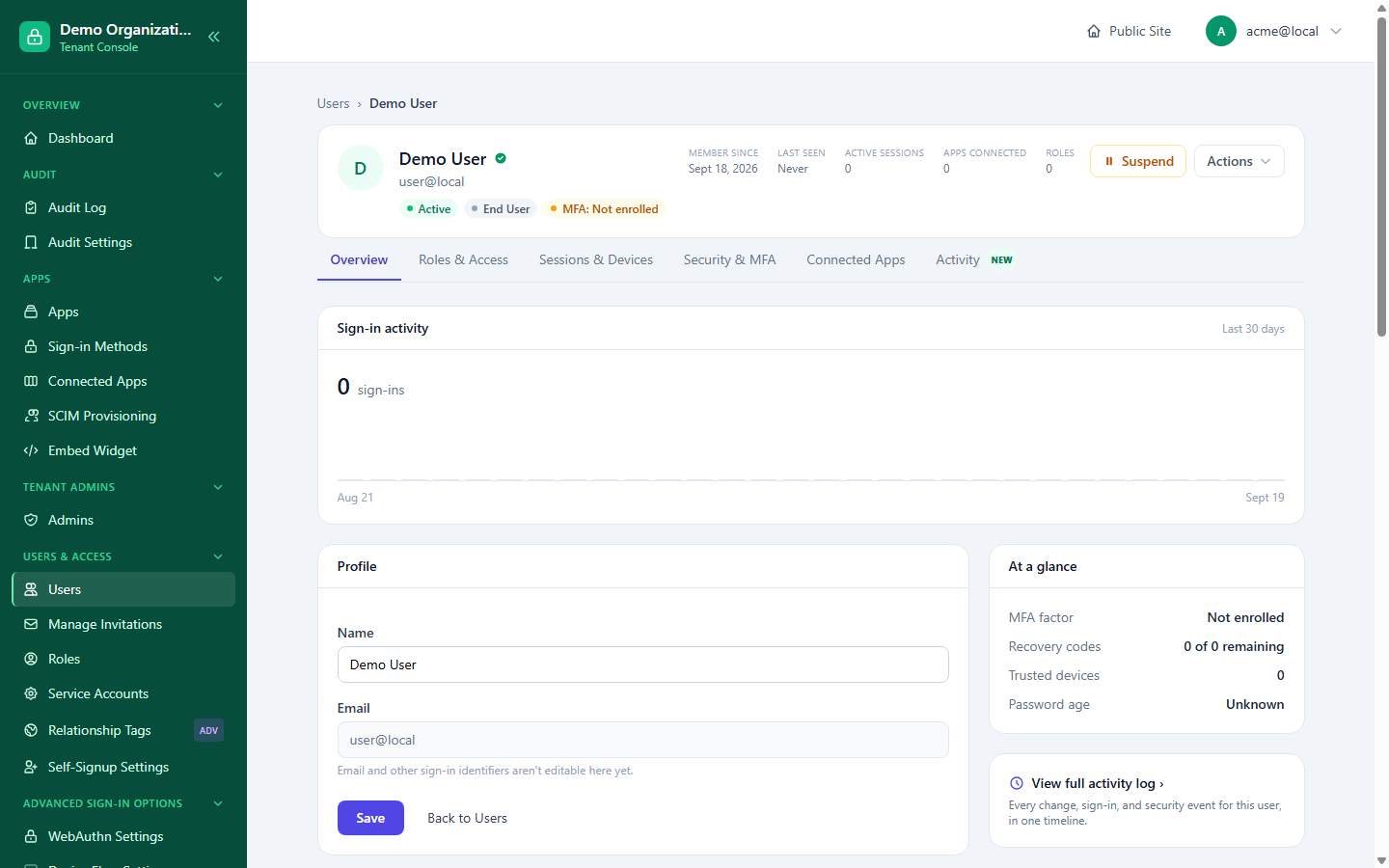
Selecting a user opens one page with several tabs, all scoped to that user:
| Tab | What's there |
|---|---|
| Overview | Profile fields, identifiers, and edit access. |
| Roles & Access | Tenant-wide and per-app role grants for this user. |
| Sessions & Devices | Active sessions, trusted devices, and the ability to revoke either. |
| Risk & Security | The latest risk score with what contributed to it, score history, enrolled MFA methods, recovery codes, active sessions and lock state. |
| Connected Apps | Which of your OAuth apps this user has authorized, and the ability to revoke access. |
| Access rules | Rules for this person only (travel allowance, IP allow-list, allowed hours, methods, device limit), plus the rules that reach them through their tag or the organization. See Access Rules. |
| Activity | A timeline of what happened on this account — see below. |
Every tab shares the same header (name, status, quick actions), so switching tabs never loses context on who you're looking at.
Risk circle, locking and unlocking
In the Users and Admins lists, each person has a coloured circle with their latest sign-in risk score (green low, amber medium, red high, grey dash when nothing has been scored yet, a padlock when locked). Clicking it opens the Risk & Security tab. Admin sign-ins are scored the same way as everyone else's.
There are two different ways an account stops being able to sign in:
- Suspend is the longer-term switch. It stays until you Restore the account.
- Lock is a timed block on new sign-ins. An account is locked automatically for a while after repeated wrong passwords, and an admin can also lock it on purpose from the Lock button in the user header: 15 minutes to 7 days, a custom length, or until I unlock it, with an optional reason and an option to end the person's current sessions too. A locked account shows a red banner on every tab with who locked it and why, and Unlock now clears it (manual or automatic).
You cannot lock your own account. Every lock and unlock is written to the audit log.
The Activity tab
The Activity tab has two views, switched with a toggle at the top:
- Account Activity — everything that happened to this account: sign-ins, profile changes, MFA changes, role grants, session revocations, and so on — regardless of whether the user did it themselves or an admin did it for them.
- Admin Actions — administrative actions taken on this account by a tenant admin, when the account itself is a tenant admin. See below for exactly what this includes.
Each entry shows what happened, when, and — where it's recorded — who did it and from where. Above the timeline, the Activity tab gives an investigation summary:
- Snapshot: last sign-in, when the password last changed, MFA method and recovery codes left, failed sign-ins in the last 30 days.
- Where this account has been used: one row per location with the IP addresses, devices, sign-in count and first and last seen, so you can see at a glance whether someone signs in from one place or several. Locations come from the IP address and are approximate.
- Devices used and Failed sign-ins by source (IP, approximate location, attempts).
- Download CSV: the events with IP, location and device, for a case file.
Admin Actions only appears for accounts that are themselves tenant admins, and only covers a specific set of actions with confirmed attribution — see Investigating an Admin's Actions for exactly what's included and why. For a full, unfiltered record of everything your organization has done, see Audit Logs.