Apps & Connectors
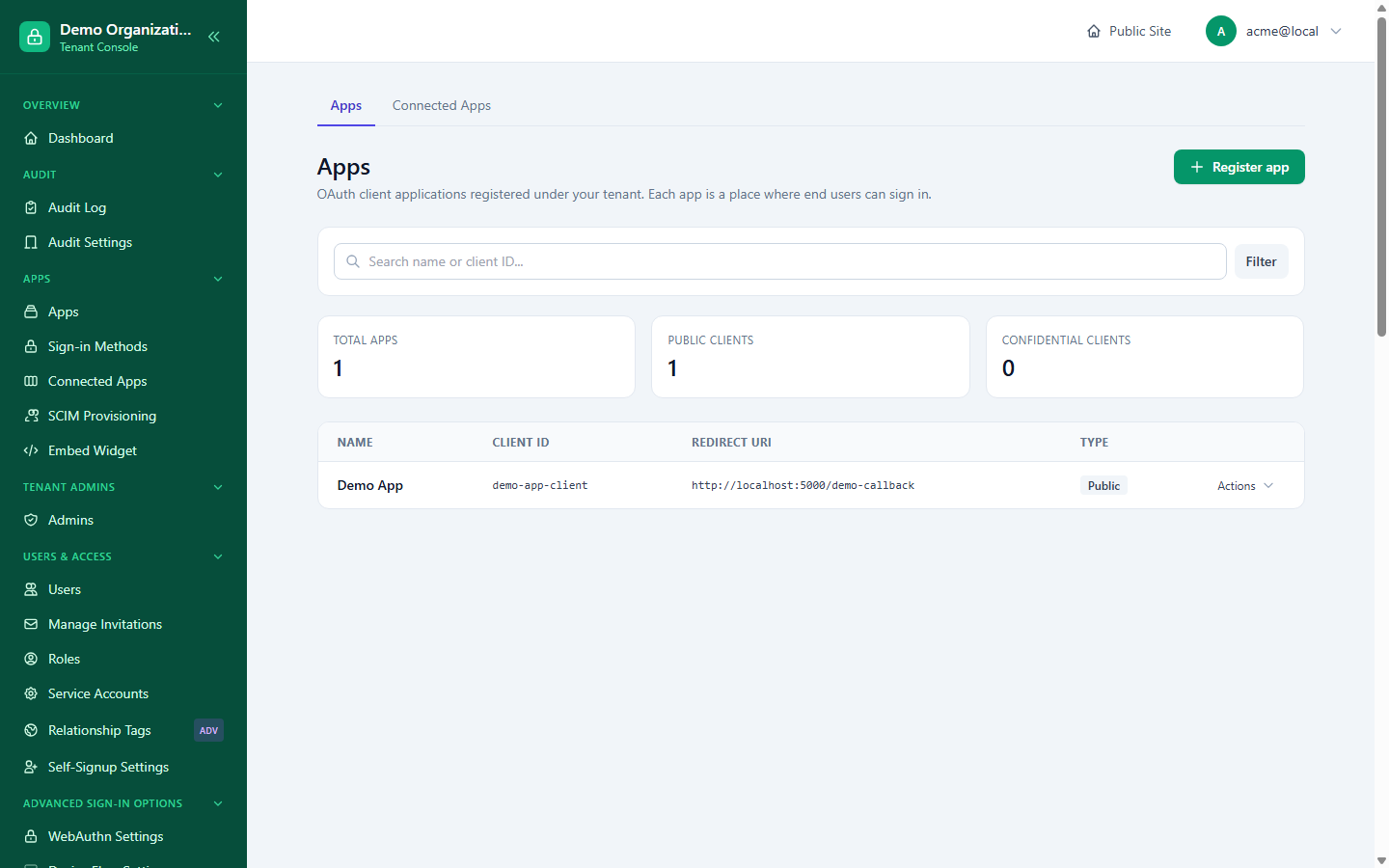
Console → Apps lists every OAuth 2.0 / OIDC client registered in your organization. This page covers registering and configuring an app, the three-layer model that governs which sign-in methods it can actually use, and the tenant-wide views that sit alongside it.
Registering an app
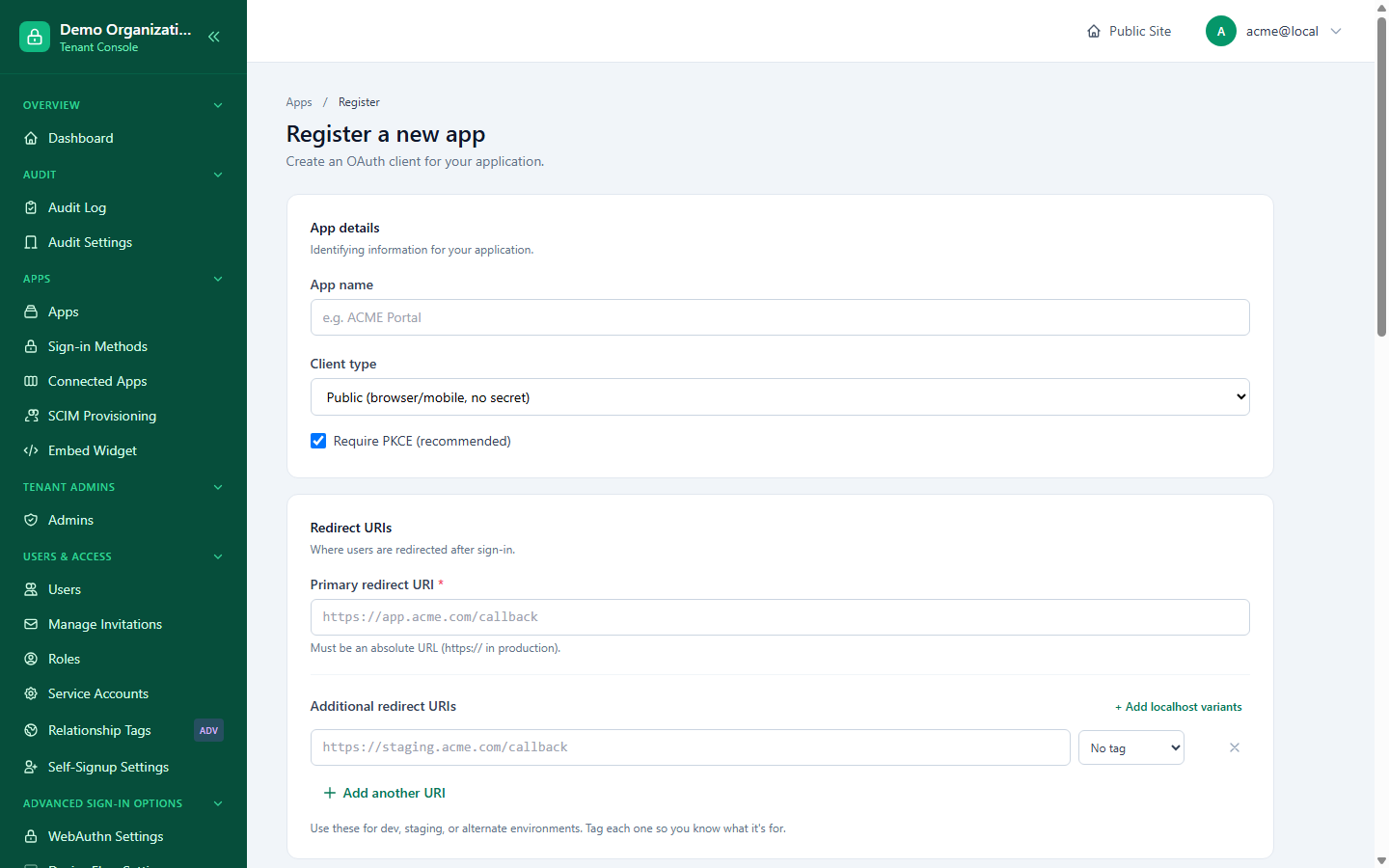
Console → Apps → New App:
- Name and primary redirect URI (required) — you can add further redirect URIs, one per line, at the same time or later.
- Client type — Public (no secret; single-page apps and native/mobile apps using PKCE) or Confidential (gets a client secret; server-side apps and machine-to-machine).
- Require PKCE — on by default; leave it on unless you have a specific reason not to.
On save, LoginLink also creates two default app-specific roles (admin, user) and enables the Password connector for the app — every other sign-in method starts disabled until you turn it on. You land on a Quickstart page with your client_id, the OAuth endpoints, and a working sample login URL you can click to try it immediately.
Editing an app
Console → Apps → (select an app) covers:
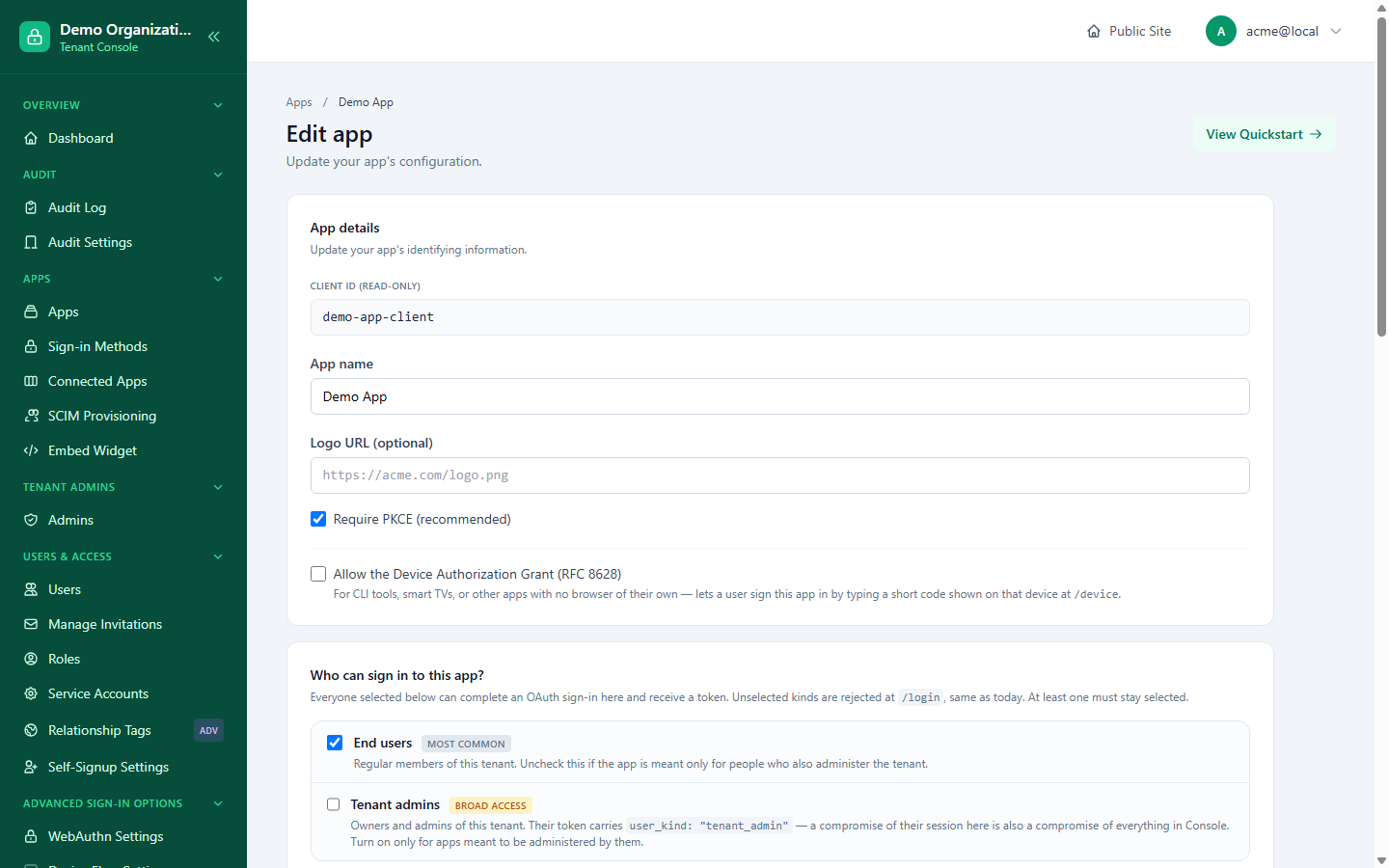
- Redirect URIs — the primary one plus any additional ones, revalidated as absolute URLs on save.
- Logo URL, Require PKCE.
- Device Flow — lets this app use the OAuth device authorization grant, but only if your organization has device flow enabled at all; a stale form submission can't silently re-enable it if an admin turned the tenant-wide setting off in between.
- Who can sign in — two independent checkboxes, end users and tenant admins. At least one must stay checked; unchecking both is rejected outright rather than silently defaulting to one of them, since either default could be exactly the opposite of what an admin who unchecked both intended. See Cross-Surface Sign-In for what enabling tenant-admin sign-in actually does.
Machine-to-machine (client secret + service account)
On a confidential app's edit page:
- Generate a client secret — shown once, in plaintext; store it immediately. Generating a secret for a public app flips it to confidential first, since a secret is meaningless otherwise. Regenerating replaces the old secret immediately.
- Create or link a service account — a real user record (
user_kind = service_account) that never signs in interactively and has no password or identifiers, used purely as the app's own machine identity for theclient_credentialsgrant. You can create a new one or link an existing service account that's already attached to another app — a single service-account identity can be shared across multiple apps; nothing requires a 1:1 relationship. - Assign the service account roles the same way you would any user, to control what its tokens are allowed to do.
Removing an app deletes its own service account only if no other app still references it; a shared service account survives.
Per-app access restriction
App → Access controls who may use this app at all, independent of what they can do once inside (that's a role concern — see below):
- Open (default) — any user in your organization can sign in to this app.
- Restricted — only users you explicitly grant access to can sign in; everyone else is turned away before roles or connectors even come into play.
The page opens with one plain choice, Everyone in my organization or Only people I choose, and a live count ("12 of 48 can sign in"). When you choose "Only people I choose":
- Grant by group lets in everyone who carries a Relationship Tag, for example all Vendors, including people tagged later. There is no separate group to maintain: the tag is the group, and access is checked live at each sign-in to the app.
- People is a searchable, filterable, paged list with per-person and bulk Grant / Revoke. Someone who gets in through a group shows as "Through group" and can be Excluded individually; an individual grant still overrides an exclusion.
- Removing access (revoking a person, removing a group, excluding someone, restricting the app, or changing someone's tag) ends their access to this app immediately: their refresh tokens are revoked, and token introspection reports their access tokens inactive. A token an app validates locally, without calling LoginLink, runs until it expires; keep access-token lifetimes short in Token Settings if that matters. Their LoginLink account and their other apps are untouched.
- The groups and guest list can be set up while the app is still open to everyone (they are marked "not in effect yet"). Set them up first, then switch to Only people I choose: the switch takes effect at once, so anyone not on them loses access right then, and the console asks you to confirm.
- The same page holds this app's own Access Rules (country, state, IP, hours, methods).
Per-app roles
App → Roles defines this app's own private role vocabulary, separate from your organization's tenant-wide roles (see Core Concepts). An app-specific role only ever shows up in that app's access token; assigning it to a user happens from the user's own Roles & Access tab (see Managing Users), not here. Deleting a role also removes it from every user who had it.
Per-app self-signup settings
App → Sign-up Settings — an override of your organization's own signup mode, scoped to this app only:
- Allow self-signup for this app — a link to "Sign up" appears on this app's sign-in page only if both this toggle and your organization's own Self-Signup setting (Console → Self-Signup Settings) allow it; either one turned off hides the link.
- Default relationship tag for someone who signs up through this app — overrides your organization's tenant-wide default tag, or inherits it if left unset.
The three-layer connector model
A sign-in method (password, a social provider, LDAP, SAML, MFA methods, and so on) has to clear three independent gates before an app can actually use it — each layer can only narrow what the layer above allows, never widen it:
Platform            the instance owner turns a connector on/off instance-wide
   │                (Admin → Connectors) — off here means off everywhere,
   │                no exceptions
   ▼
Tenant               your organization approves a platform-enabled connector
("Sign-in Methods")  (Console → Sign-in Methods) and chooses its scope: every
   │                approved app, or only specific apps you list
   ▼
App                  the app's own toggle (Console → App → Connectors) —
                     only actionable if the tenant has approved this
                     connector AND scoped it to include this app
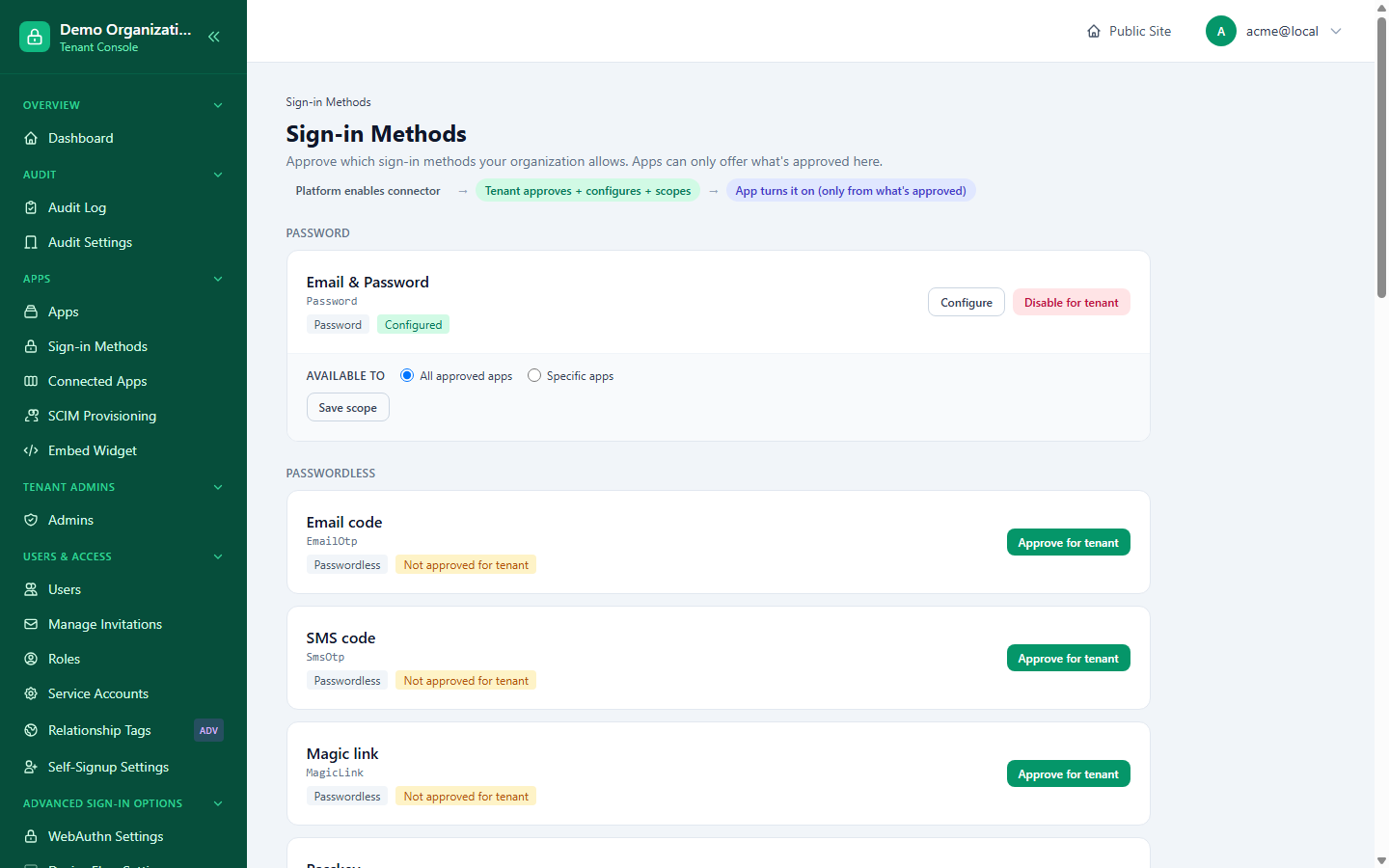
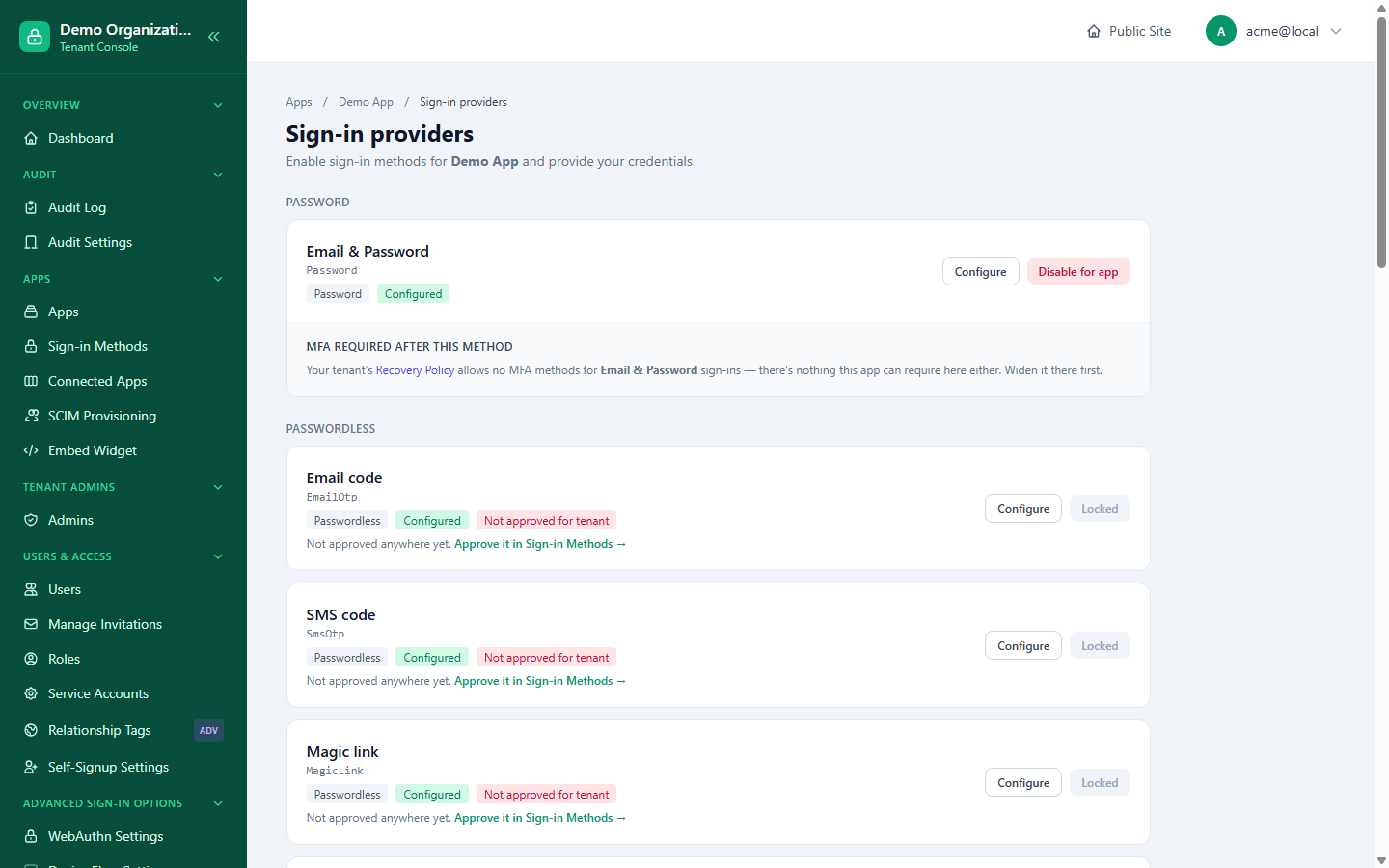
If you enable a connector on an app before approving it at the tenant level, the toggle is rejected with a message pointing you at Sign-in Methods first — there's no way to accidentally expose a connector your organization hasn't approved.
Configuring a connector — Floor and Override
Once a connector is approved, Console → Sign-in Methods → Configure (tenant-wide credentials/settings, shared by every approved app) or App → Connectors → Configure (a specific app's own override) opens its settings form. Every field can carry a platform Floor — a minimum, maximum, or "must stay on" constraint the platform owner set — shown inline next to the field (e.g. "Platform floor: 8 (you can set this or higher)"). Saving a value that would relax the Floor is rejected with a specific error naming which field failed, not a generic "invalid settings" message. This is the same Floor/Override pattern described in How LoginLink Works, applied at the level of individual connector settings rather than session/token lifetimes.
Secret fields (API keys, client secrets for a social provider, etc.) never redisplay their stored value — leaving one blank on save means "keep what's already there."
Per-app MFA pairing override
On App → Connectors (labeled "Sign-in providers" on the page itself), each sign-in method that can itself be a primary login step (password, an OAuth/social provider, SAML) shows an inline "MFA required after this method" note reflecting your organization's tenant-wide policy, and can have its own list of which second factors it accepts, narrowed further still — an app can only remove options, never add one the tenant hasn't already allowed. Clearing an app's override falls back to the tenant default automatically. A connector the tenant hasn't approved yet shows as Locked, with a direct link to Sign-in Methods to approve it.
Tenant-wide views
- Console → Sign-in Methods (
ConnectorPolicy) — the tenant-approval layer described above: approve/disapprove each platform-enabled connector and set its scope (all apps, or specific ones). - Console → Providers — a simple, read-only table of which connector is enabled on which app, useful as a quick cross-app audit without opening each app individually.
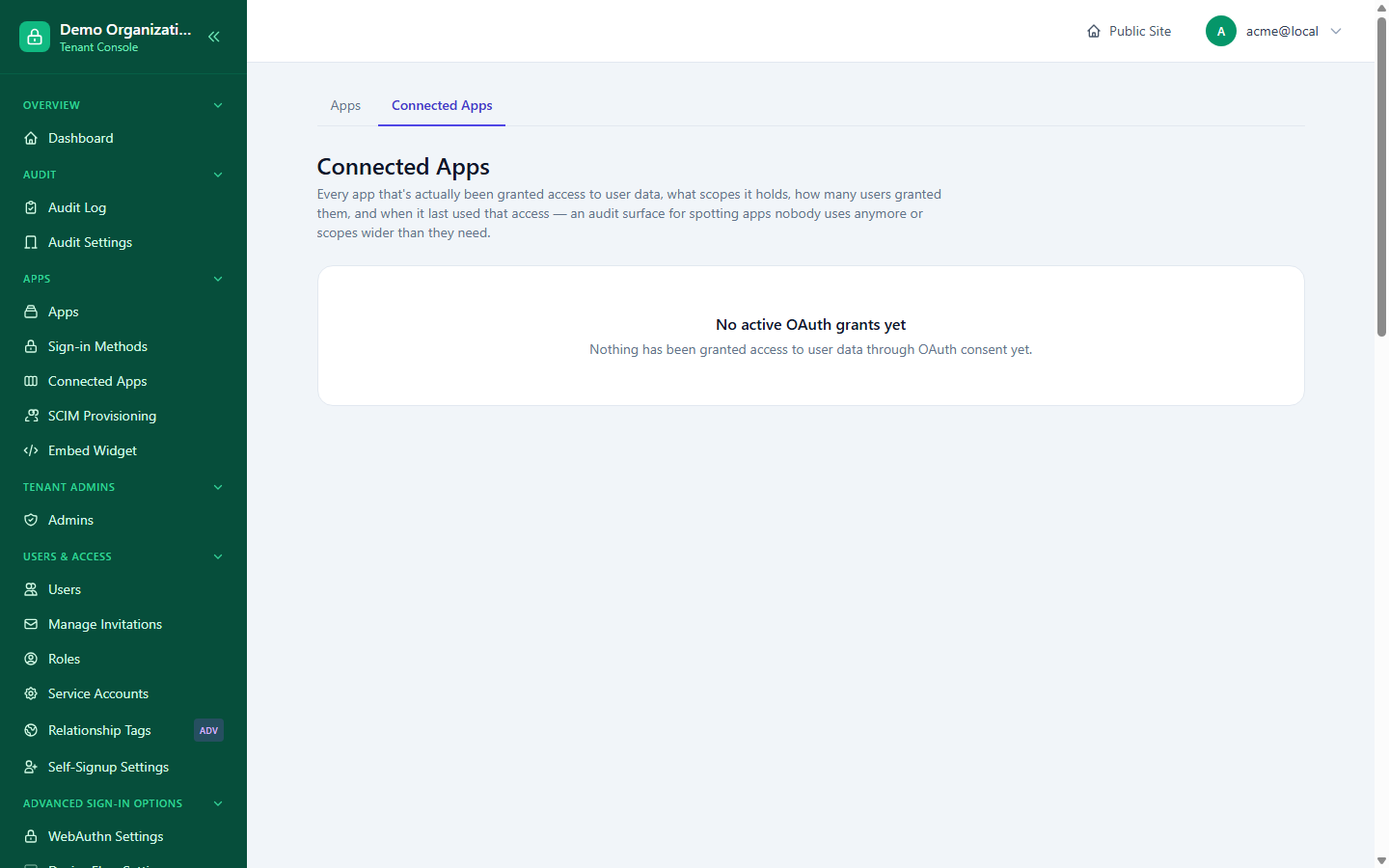
- Console → Connected Apps — which apps have actually been granted access by real users: per-app counts of distinct users and last token issuance, drilling down to the individual grants and that app's own recent audit activity. This tracks real OAuth consent grants, not just connector configuration — an app can be fully configured and never have a single user connected to it yet.
- Console → Embed Widget — the domain allow-list for the embeddable widget; see that page for the full widget guide.
Related reading
- Cross-Surface Sign-In
- Management API — registering and managing apps by script instead of by hand
- Core Concepts — the Apps and Roles entities at the API level