Delegated Access ("Act As")
"Act As" lets a tenant admin temporarily browse your product as a specific end user sees it — the standard support-impersonation pattern, but audited and time-boxed by design. This page covers the whole lifecycle: turning it on, starting a session, the optional target-approval step, and how it ends.
Turning it on
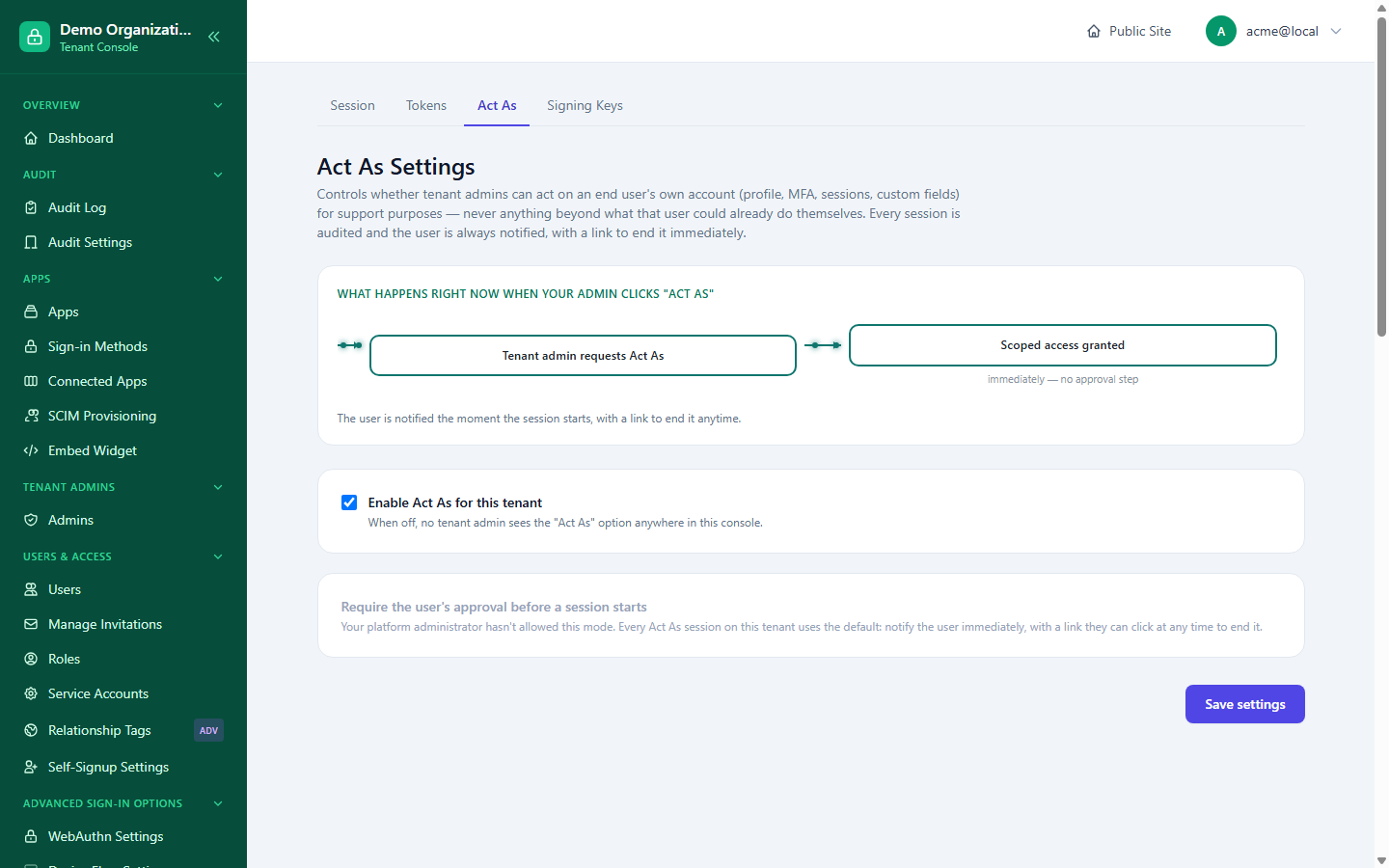
Console → Act As Settings — two independent switches:
- Enabled — whether your organization uses Act As at all. Only meaningful if the platform owner has allowed the feature instance-wide; if the platform has it off, your organization's switch can't turn it on.
- Require approval — whether starting a session needs the target user's own prior sign-off before an admin can proceed. Only selectable if the platform has allowed that mode to exist — otherwise the option is shown disabled with an explanation naming the platform administrator as the reason, not a generic "unavailable."
The page includes a live summary of exactly what happens today when an admin clicks "Act As," so you never have to infer the current effective behavior from the two checkboxes alone.
Starting a session
From a user's own page, an admin starts an Act As session by supplying:
- Reason — at least 10 characters; a real justification, not a placeholder.
- Duration — between 5 and 60 minutes, chosen up front; the session cannot be extended past this without starting a new one.
If your organization doesn't require approval, the session starts immediately. If it does, the request goes to the target user for approval instead.
The approval flow (when required)
- The admin's request lands in Console → Act As Pending — a queue of the admin's own outstanding requests, not a live-polling wait screen. There's nothing to sit and watch: the admin gets emailed the moment the target user responds.
- The target user approves or denies from their own side (their profile/notification surface).
- On approval, the admin's next visit to the pending queue (or the direct link from the notification email) claims the session and lands them in the target user's real experience.
What the admin actually sees
Rather than a separate, purpose-built "viewer" reimplementing a handful of the target user's own screens, an active Act As session swaps the request identity outright while browsing /profile/* — the admin sees the target user's real, full profile surface, not a limited facsimile of it. A persistent banner is shown on every page during the session, with an End session action always available from it.
Ending a session
End session (from the banner, on any Console or profile page) terminates the Act As session immediately. This action only ever reduces privilege — it never starts or escalates anything — so it works even from inside a page that's currently rendered under the target user's own identity.
What's recorded
Every part of this lifecycle is attributed and logged: the request itself, its approval or denial (if required), the session's start and end, and — per Investigating an Admin's Actions — the individual actions taken while acting as another user, with confirmed attribution to the acting admin, not the impersonated user.
Related reading
- Investigating an Admin's Actions — the audit-side view of everything described here.
- Managing Users — where an Act As session is actually started, from a user's own page.
- Platform Organizations — Access on Behalf — the platform-side counterpart, a platform admin acting on an organization's own behalf rather than a tenant admin acting as one end user.