Walkthrough: Your First App
A click-by-click walk through registering an app, understanding the screen it drops you on, and turning on a second sign-in method for it — the first real task most new organizations do. Each step says what you click and what actually happens on screen, not just what the feature is.
1. Open Apps and click Register
Start at Console → Apps. Every OAuth client your organization has ever registered lives here — for a brand-new organization, that list is either empty or holds only a sample app, plus totals for public vs. confidential clients.
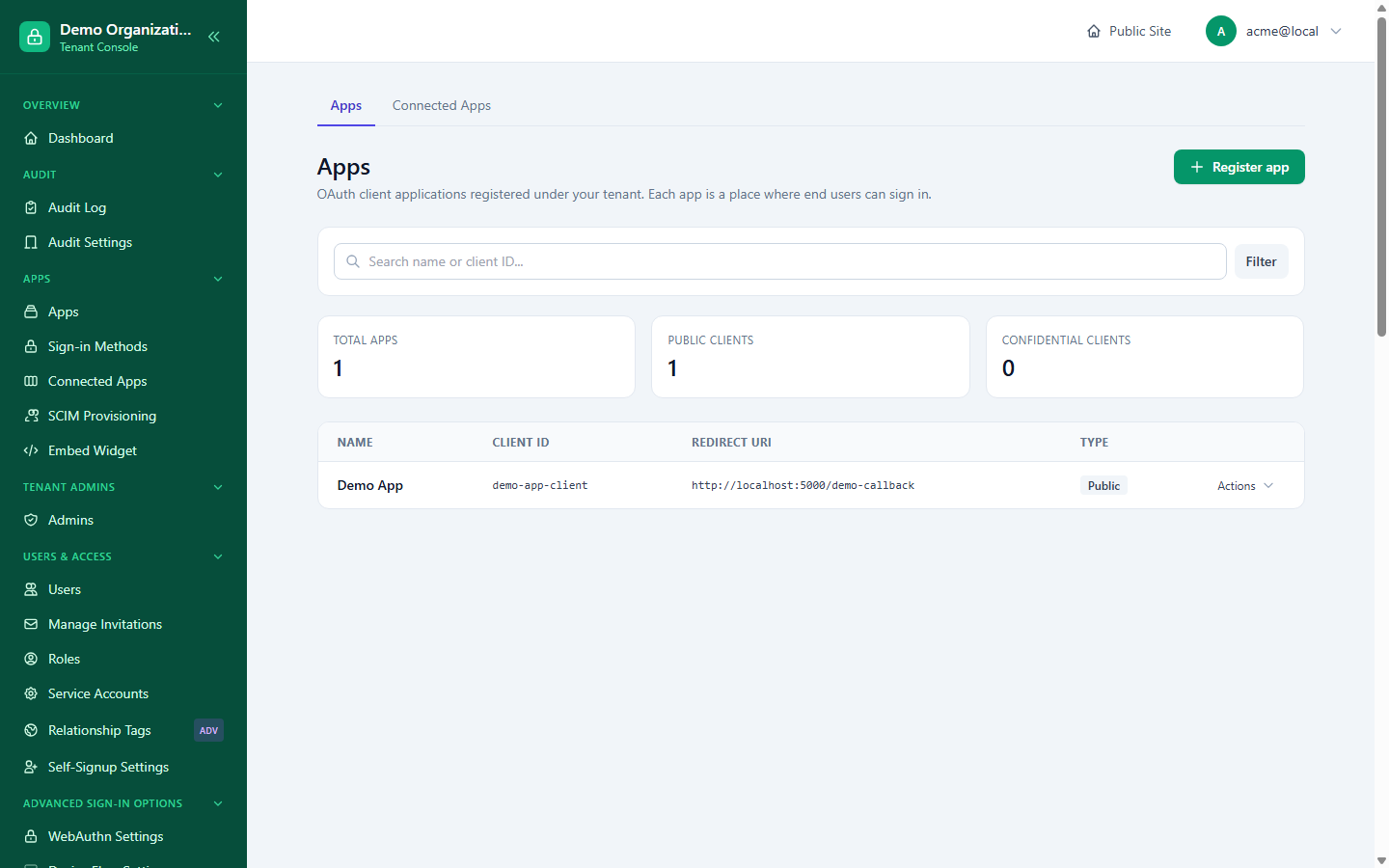
Click Register app (top right). This doesn't ask anything yet — it takes you straight to the registration form.
2. Fill in the form
Three things are asked for:
- App name — anything human-readable; it shows up later in your users' consent screens and in every audit-log entry about this app.
- Client type — leave it on Public unless you already know your app is a confidential server-side client with its own secret.
- Primary redirect URI — where LoginLink sends the user back after they sign in. This has to be a real, absolute URL your app actually serves; you can add more later (staging, localhost, a second environment) from this same form or from the app's edit page afterward.
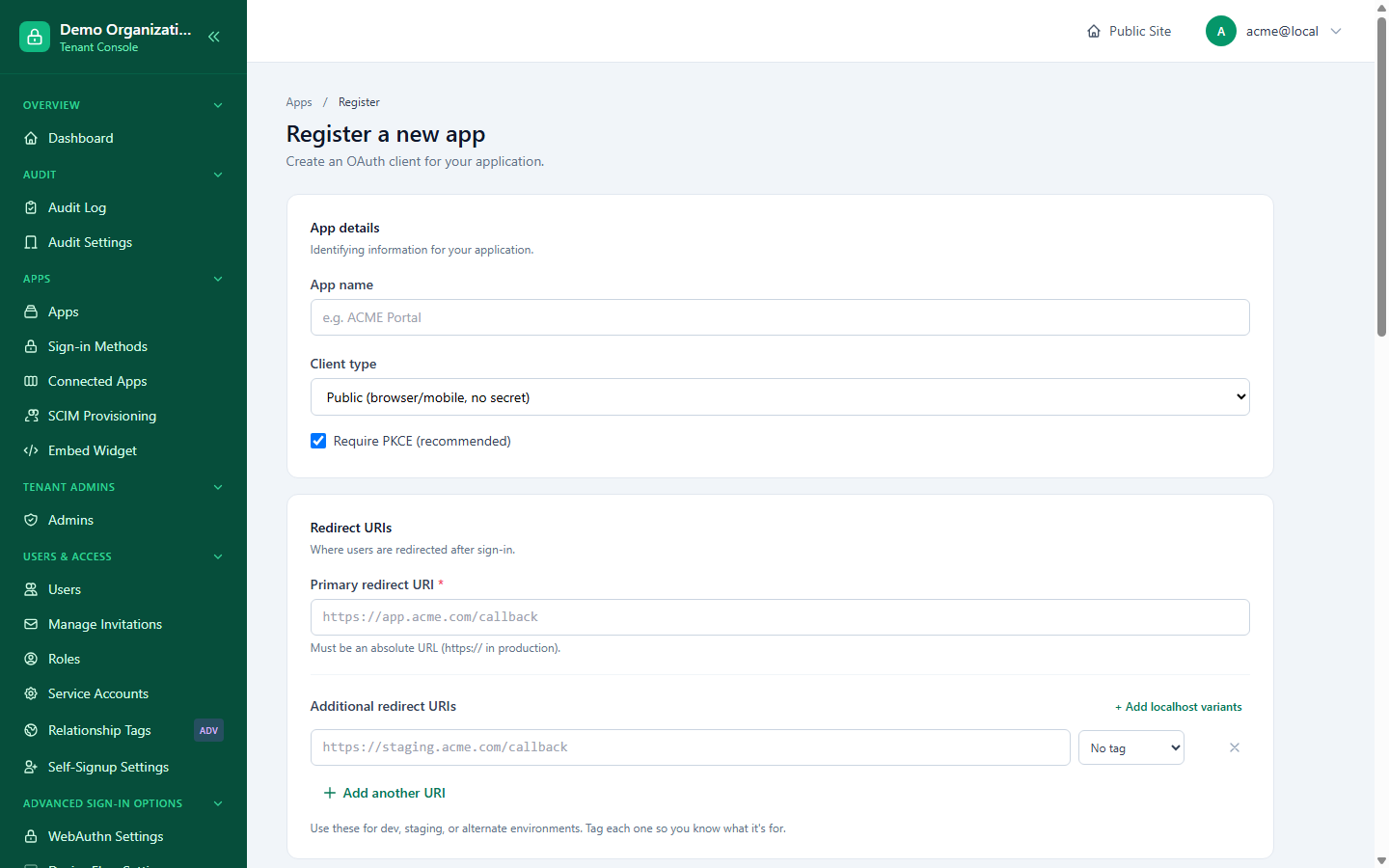
Require PKCE is checked by default — leave it checked. Click Register app at the bottom.
3. What happens the instant you click Register
Four things happen in one step, before the page even finishes loading the next screen:
- A
client_idis generated. - Two default app-specific roles are created (
admin,user) — you didn't ask for these; they exist so you have somewhere to start once you get to authorization logic. - The Password connector is enabled for this app automatically. Every other sign-in method — social logins, magic link, SAML, anything — starts disabled for this specific app, even if your organization has already approved it for other apps.
- You're redirected straight to a Quickstart page carrying your new
client_id, the real OAuth endpoints for your instance, and a working sample sign-in URL you can click immediately to test the whole flow end to end without writing a line of code yet.
4. Land on the app's own settings
From the app's row in the Apps list (or the breadcrumb on the Quickstart page), open Edit app. This is where the rest of the app's identity lives — redirect URIs, logo, whether it can use the device flow, and the two checkboxes controlling who's even allowed to sign in to it at all (end users, tenant admins, or both).
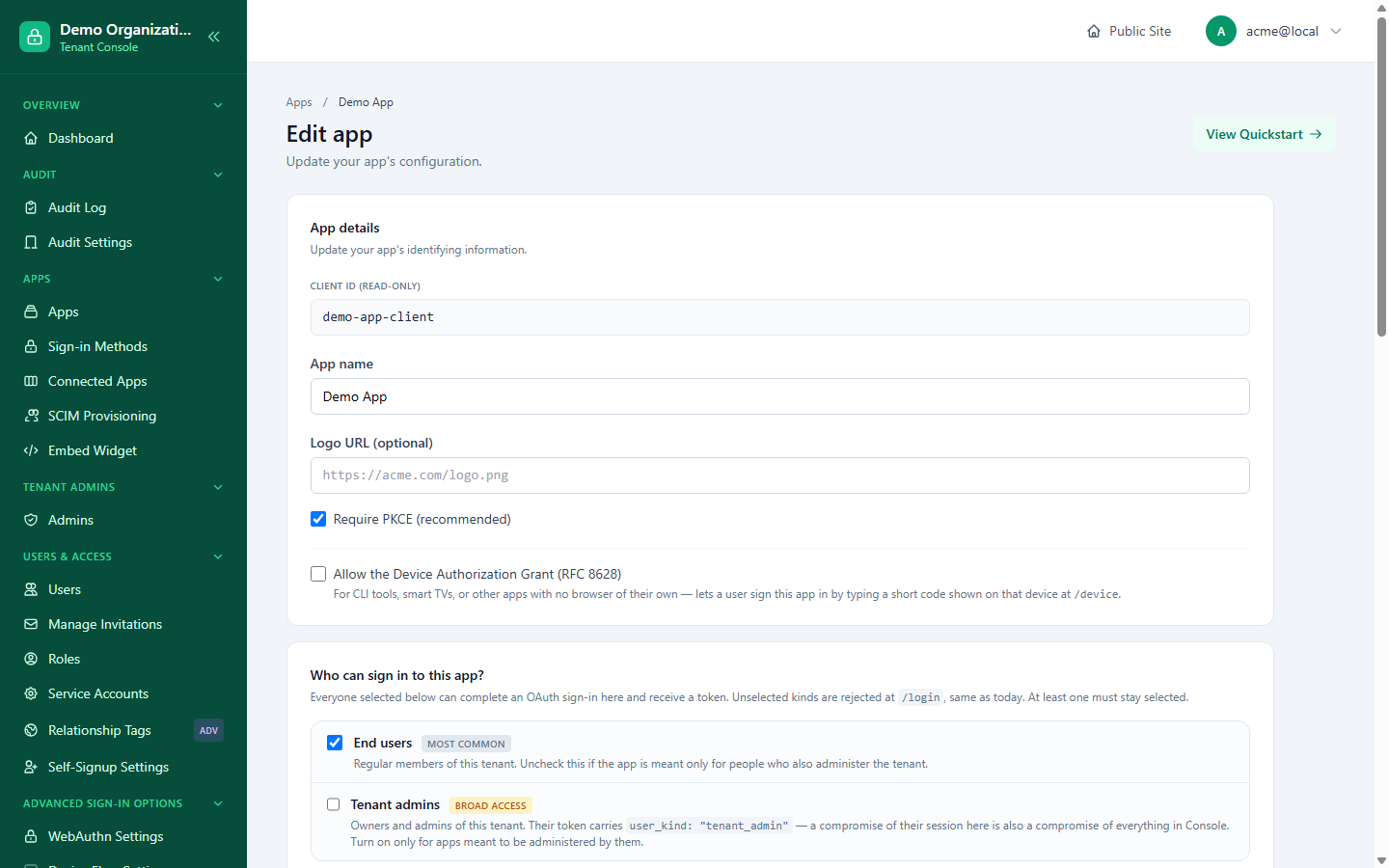
Nothing here needs to change for a typical app — the defaults (end users only, PKCE on, device flow off) are what most apps want. This page matters when you come back later to generate a client secret for machine-to-machine use, or to restrict the app to admins only.
5. Turn on a second sign-in method
Open Sign-in providers from the app's own menu (this is the page App → Connectors in the sidebar renders as). Every sign-in method your organization has ever approved shows up here as a card — approved-and-configured ones are toggleable right away; anything your organization hasn't approved yet at all shows as Locked, with a link straight to Sign-in Methods to fix that first.
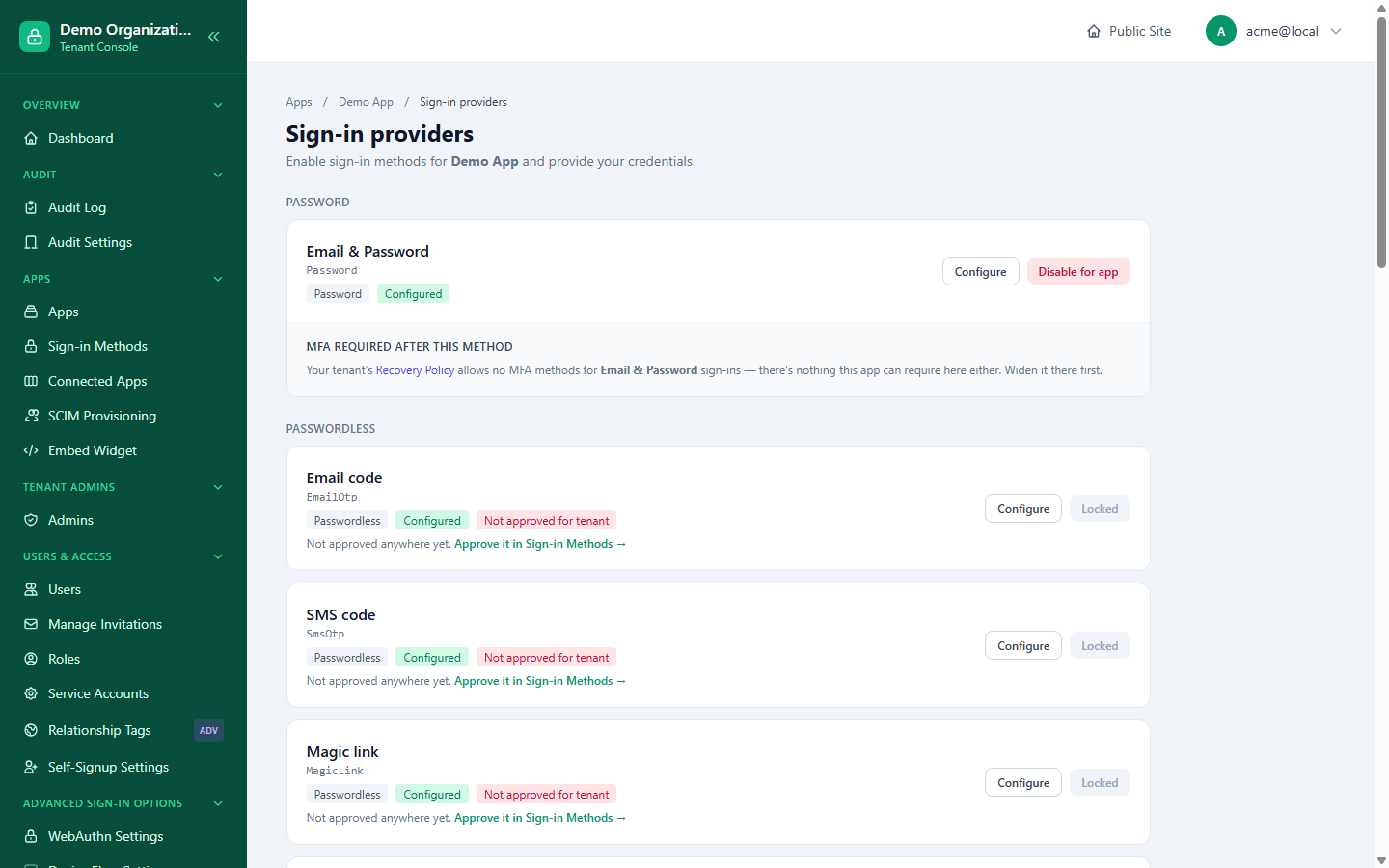
If the method you want is locked: click through to Sign-in Methods, approve it there for your organization (choosing whether it applies to every approved app or just specific ones), then come back to this app's Sign-in providers page — the toggle is now live instead of locked. Click it on. That's the whole loop: platform enables the connector globally → your organization approves it → this specific app turns it on — three separate yeses, in that order, every time.
6. Confirm it's actually being used
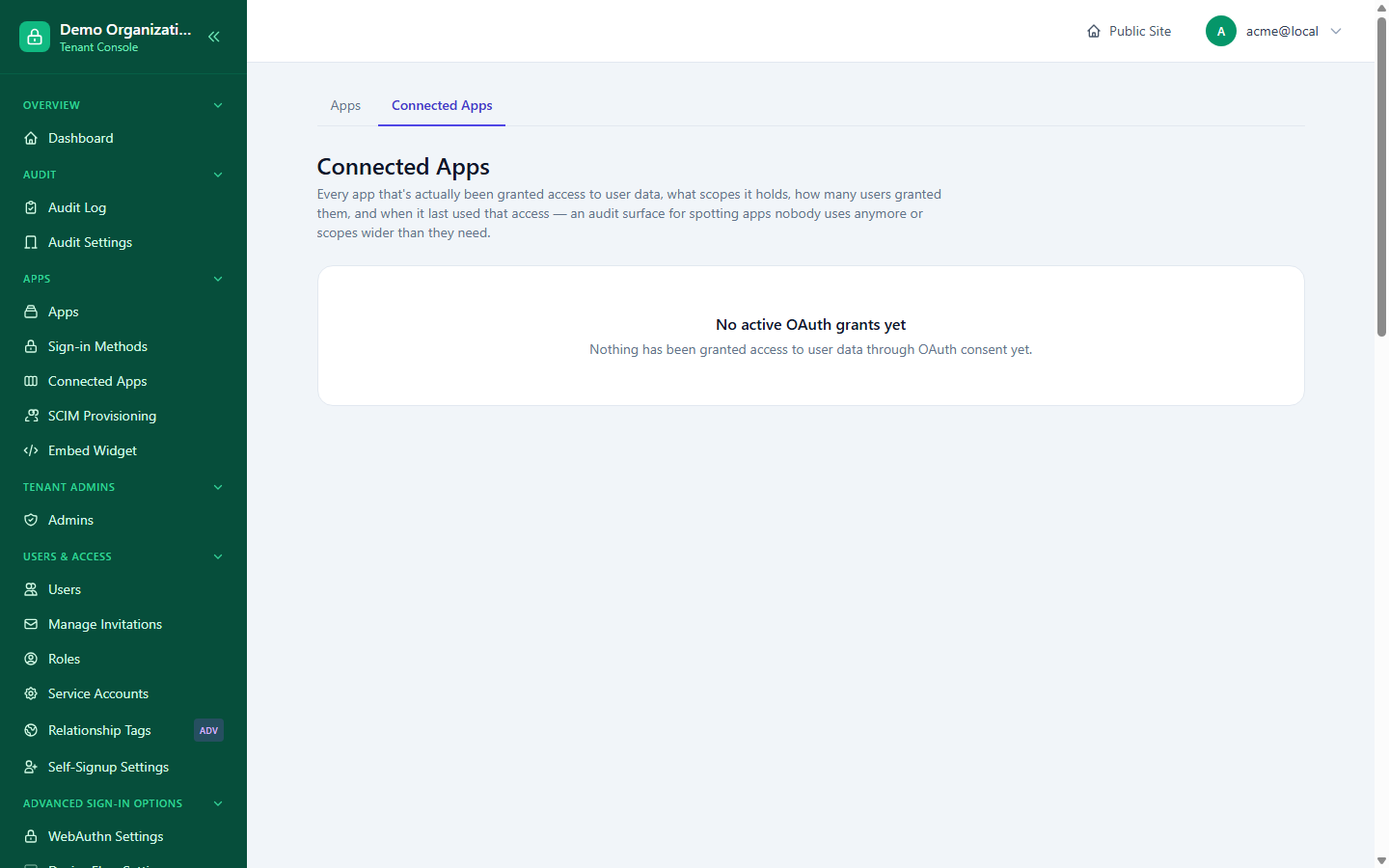
Once real users start signing in through the app, Console → Connected Apps shows the payoff of all of the above from the other direction — not what's configured, but what's actually been used: how many distinct users have granted this app access, and when it last issued a token. An app that's fully configured but has never had a single user connect to it shows up here as exactly that — visible, not hidden.
Where to go from here
- Apps & Connectors — the full reference for everything touched in this walkthrough, including machine-to-machine setup and per-app MFA pairing.
- Quickstart — the personalized integration guide the Register step drops you on, with real code samples for your stack.
- Management API — doing steps 1–2 by script instead of by hand, once you're registering apps regularly.